Club Classifications
By default, event classifications come from the rule you choose when creating an event. Target Score pre-configures standard classifications based on the NRA rules selected. However, if your club uses its own classification system, you can create custom Club Classifications. Please note that once you create Club Classifications, they will override the rule-provided classifications for all events in this club.
Classifications are one of several club-wide lists. The same list can be edited from the club dashboard's Classifications & Categories page, alongside age categories and participant categories, while disciplines and divisions live on Manage Club > Club Divisions. See Classifications & Categories for how the attributes relate and which ones an event can switch off.
Pre-configured Classifications by Rule
When you create an event and select a ruleset, the following classifications are automatically available:
| Rule | Classifications |
|---|---|
| ICFRA | X, A, T, O |
| DCRA | MS, EX, SS, GS |
| NRA of USA | HM, MS, EX, SS, M, UC |
| NRA of UK | X, A, T, O |
| WI Fullbore Shooting Council | A, B, C, O |
| NRA of Australia | A, C, C, O |
| ISSF | MS, EX, TEX, SS, M, JR |
If your club uses different classifications than those provided by the standard rulesets, you can override them by creating Club Classifications. Your custom classifications will apply to all events for your club.
Create Club Classification
- Go to Club Classifications under the Manage Club menu option.
- Click on Add Classification.
- Enter the name of the classification (e.g., "Expert").
- Enter the short code for the classification (e.g., "EX"). This should be 5 characters or less and contain only letters.
- Set the order number to control how classifications appear in the participant registration form. Lower numbers appear first.
- Click on Create.
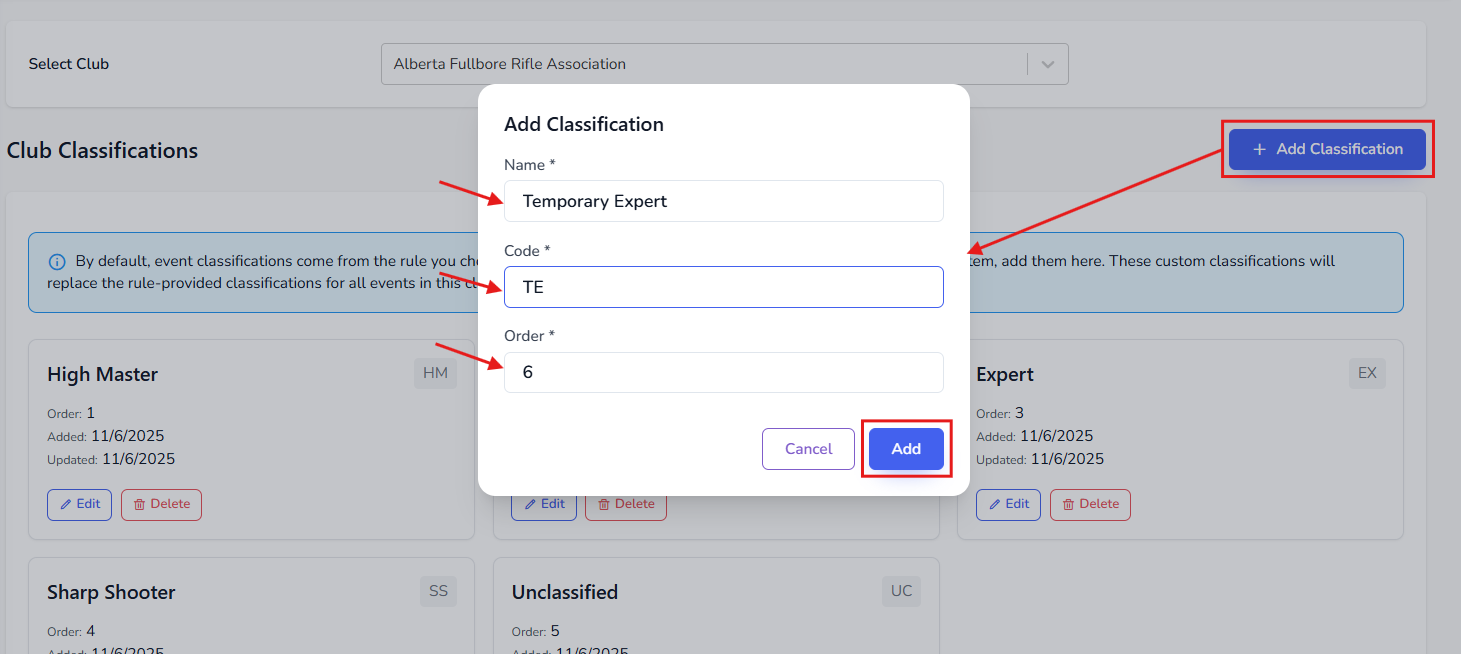
The order field determines the sequence in which classifications appear on the registration form. Use incremental numbers (1, 2, 3, etc.) for easy organization.
Edit Club Classification
- Go to Club Classifications under the Manage Club menu option.
- Click on the pencil icon to edit the classification information.
- Edit the name, code, or order as needed.
- Press the Update button.
Remove Club Classification
If you have used this classification for your events, removing it might cause issues with existing participant records. We recommend creating a new one instead.
- Go to Club Classifications under the Manage Club menu option.
- Click on the trash icon beside the classification.
- Confirm deletion in the popup.
You can create a maximum of 20 custom classifications per club. If you need to add more, you must first remove existing ones.
How Custom Classifications Work
- Override Behavior: Once you create even one custom classification, all default classifications from the ruleset are replaced with your custom list.
- Event Registration: Participants will see your custom classifications instead of the standard ones when registering for events.
- Display Order: Classifications appear in the order you specify using the order field.
- Code Usage: The short code is used for display on scorecards, result tables, and aggregates.
Custom classifications only affect events for your club. They do not impact other clubs or global settings.