Enter Scores
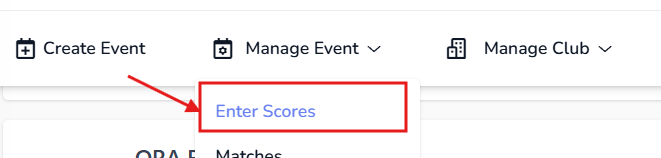
This page is located under Manage Event > Enter Scores.
Steps to Enter Scores
- Select an Event: Choose an event from the blue Select Event section above.
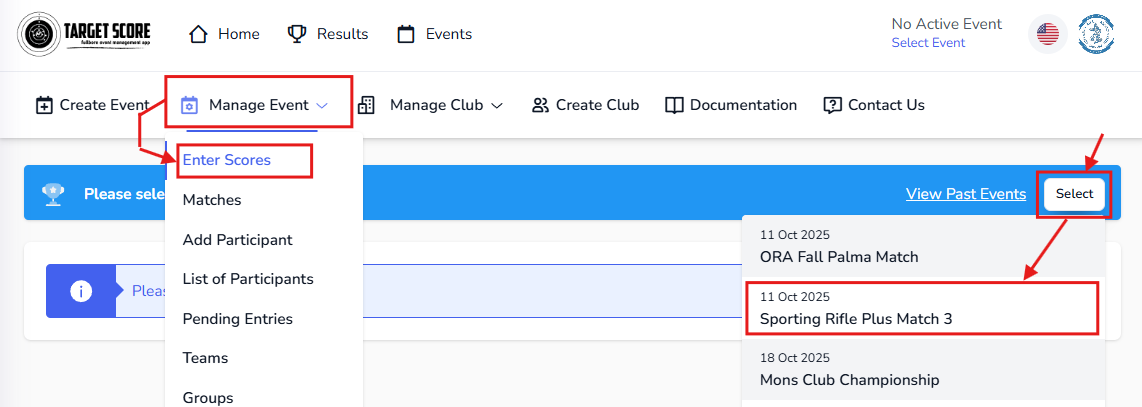
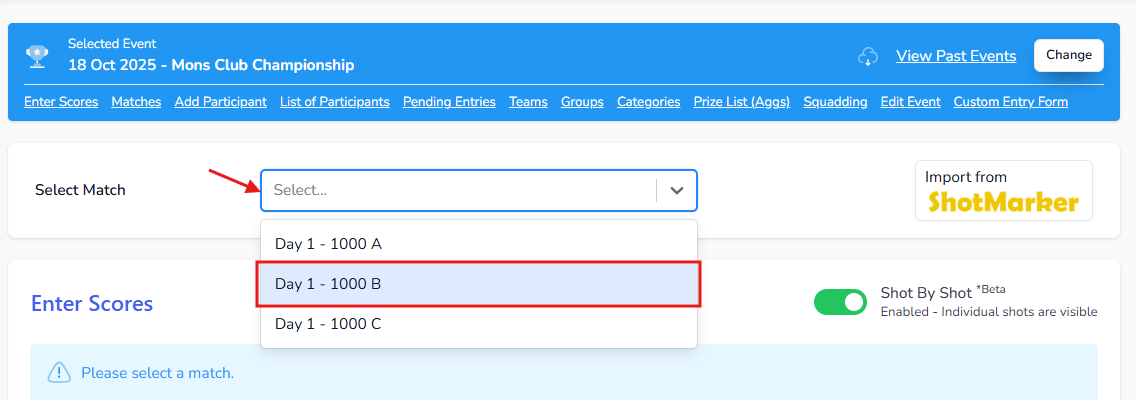
- Select Match: Choose the match for which you want to enter scores from the dropdown.
- Locate the Participant: Participants are listed numberially by their competitor number. Then their name - country code - classification - division. Press Ctrl+F (or Cmd+F on Mac) to search for a specific participant by name or competitor number.
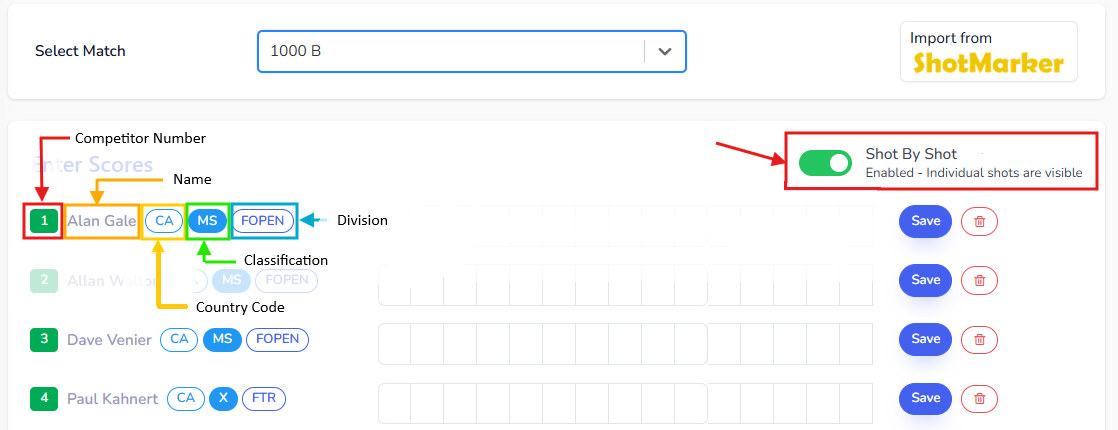
- Enter Scores: There are two ways to enter scores:
- Shot by Shot: This is used by most events to handle countback rule to break ties.
- Totals: This is used by some events where quick stats are required and countback is used based on totals.
Toggle off "Shot by Shot" for totals mode.
Steps to Import Scores
Target Score can import scores three ways: a Shot Marker scores export, a Shot Marker event backup, or a CSV / Excel spreadsheet (see Import from a spreadsheet below). For Shot Marker, you can export just the scores or the entire event backup.
Exporting the entire event backup is recommended as it includes participant shot data, which allows Target Score to generate detailed target picture and statistics.
1. Export Scores from Shot Marker:
- Entire Backup
- Scores Only
- Open Shot Marker global and navigate to the Global Settings Popup by clicking on the globe icon.

- In the Global Settings, click on the Save Backup button to export the entire event backup (.tar) file.
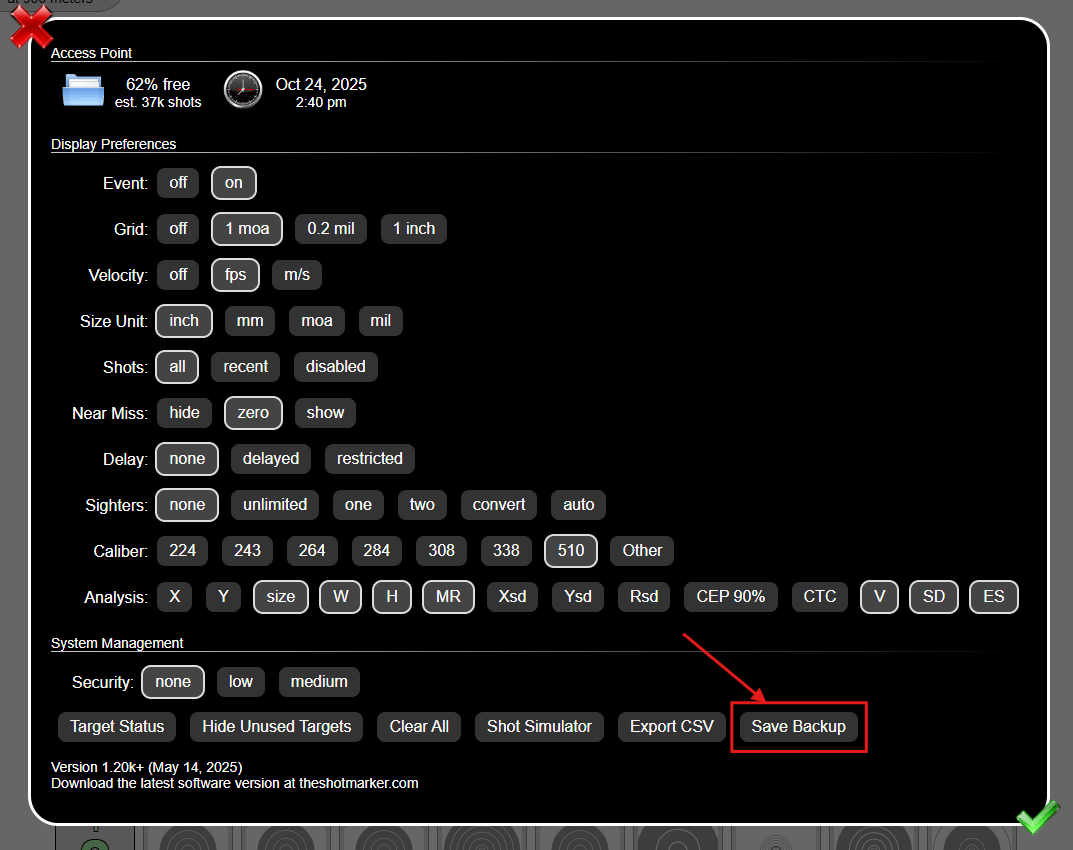
- Save the exported file to your computer.
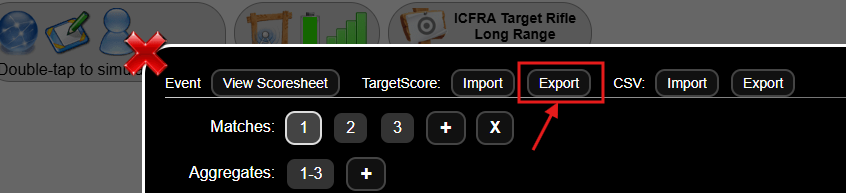
- Open Shot Marker and navigate to Event Settings popup by clicking on Scratch Pad icon.

- On the Event Settings popup, click on Export button beside TargetScore to export just the scores.
- Save the exported file to your computer.
2. Import Scores into Target Score:
-
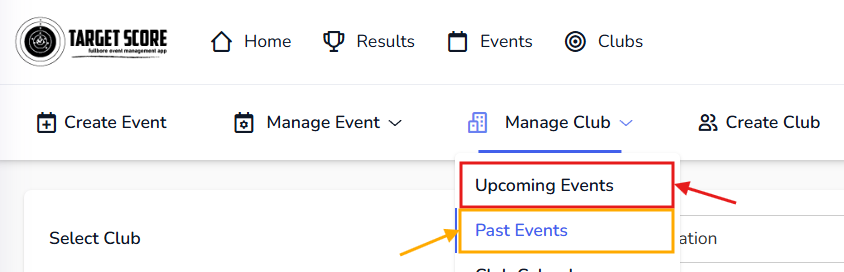
Set an Active Event, Go to Manage Club > Upcoming Events page to select ongoing event. Or for the past events, go to Manage Club > Past Events page.
-
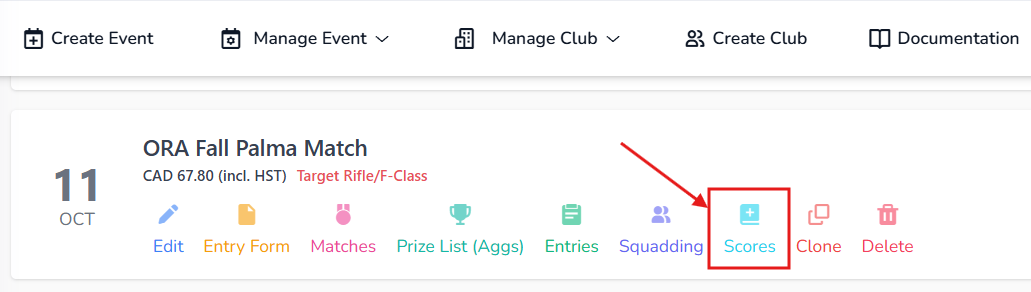
Click on Scores button on Event.
 tip
tipIf there is already an active event selected, you can go directly to Enter Scores page by navigating to Manage Event > Enter Scores.
-
On Enter Score page, click on the Import scores button.
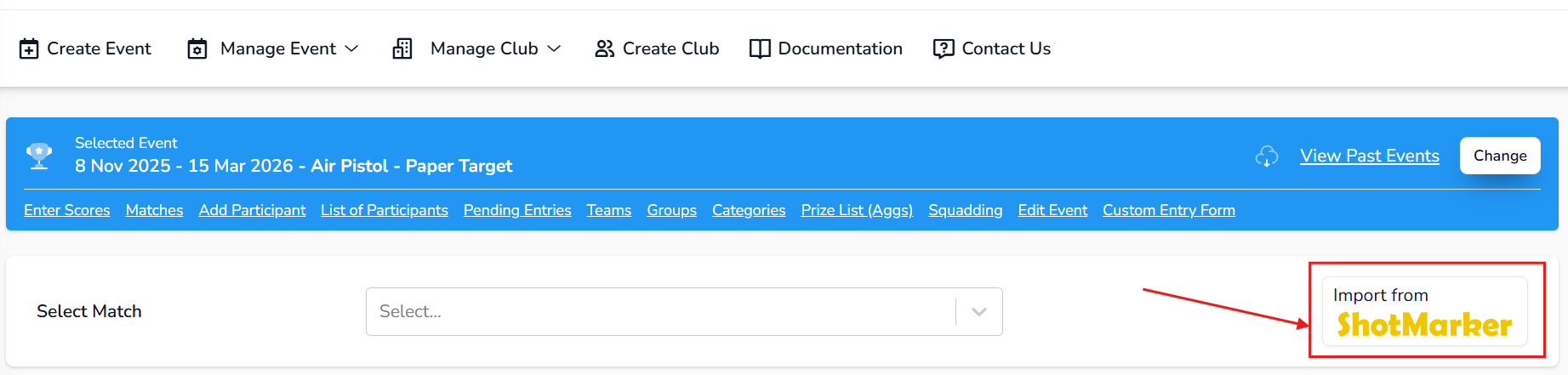
- Entire Backup
- Scores Only
- Select the exported file from Shot Marker and drop it in the designated area.
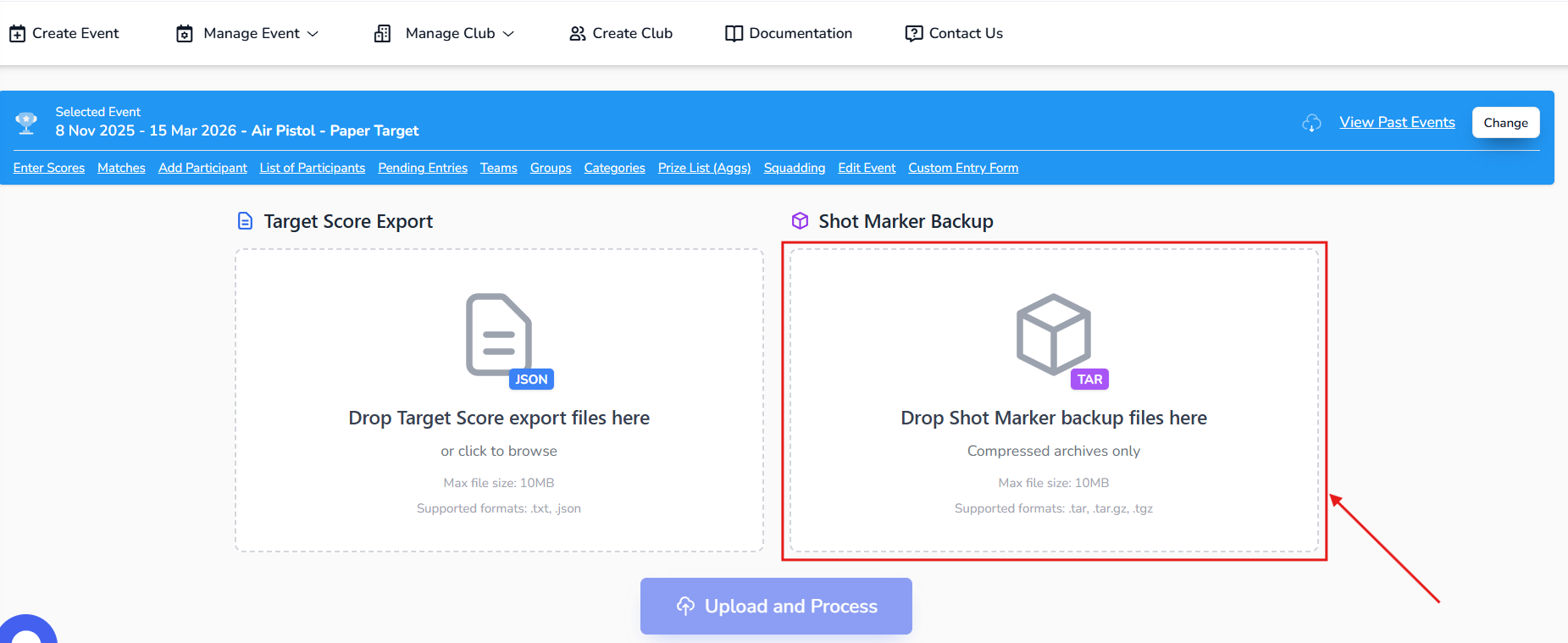
- Click on Upload and Process button to start the import process.
- Follow the on-screen instructions to map participants and matches if prompted.
- Select the exported file from Shot Marker and drop it in the designated area.
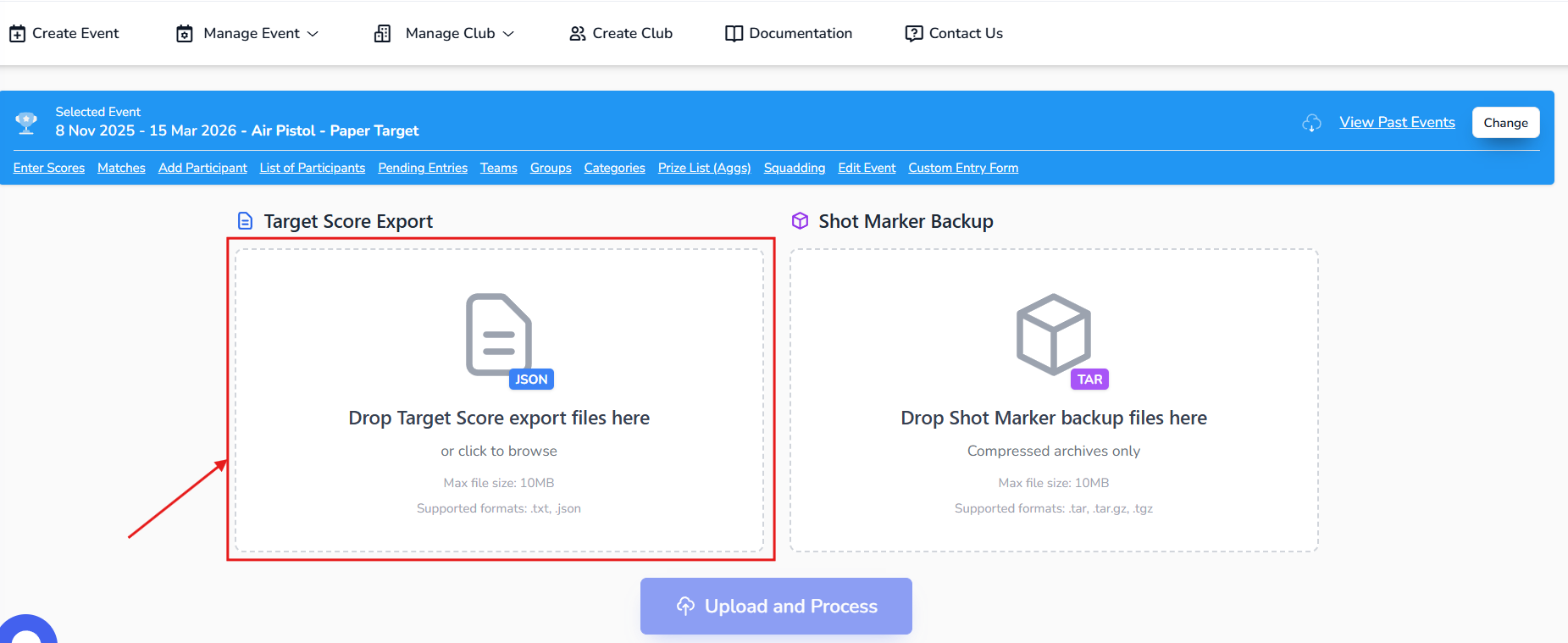
- Click on Upload and Process button to start the import process.
- Follow the on-screen instructions to map participants and matches if prompted.
3. Check the matches and participants
Whatever the file, the import then walks through the same steps — shown along the top of the page as Upload File → Confirm Data → Resolve Duplicates → Matches → Participants → Final Review. Steps that need nothing from you are checked off and passed over, so a clean file goes straight to saving.
A bar under the steps names the file you loaded and how much is in it. Start Over drops the file and takes you back to the drop zones; anything you mapped by hand is kept.
Duplicates
If the file scores the same shooter twice in the same match, Target Score cannot know which one counts. Each clash is shown with both sets of shots — pick the one to keep.
Matches
Matches in the file are recognised by name (capitals and spacing do not matter). Anything not recognised is highlighted, and you can either pick the right match from the drop-down or click Add New Match to create it there and then, pre-filled from the file.
Each match takes one column of the file, so choosing a match that another row is already using simply moves it across.
Participants
Every shooter in the file is matched to an entry in the event. Each row shows how it was matched:
| Badge | Meaning |
|---|---|
| Matched | Target Score recognised the shooter on its own. |
| Your pick | You chose this entry (now, or in an earlier import for this event). |
| Needs confirmation | The file's identifiers disagree — pick the right shooter. |
| Not matched | Nothing fits. Map it, add the shooter, or let the scores be dropped. |
Use Only show unmatched to hide the rows that are already sorted — useful on a long file where only a few shooters need attention.
An entry can only receive one shooter's scores. An entry already taking scores for another row is greyed out in the drop-down and tells you which row is holding it — so if it is the one you want, change that row first. Nobody is hidden from the list: an entry you cannot select is still an entry that exists, not a shooter missing from the event.
To free an entry, clear the row holding it with the × in its drop-down (only rows you picked yourself can be cleared — an automatic match would just come straight back).
Someone in the file is not entered in the event
Click Add Participant on their row. The full entry form opens in a window — the same one as Add Participant, with the athlete search already filled in from the file. Choose the athlete (or create the profile), complete anything the event needs, and save. The shooter is entered and their row is matched to the new entry for you.
The confirmation email is switched off here, since you are importing scores for a match that has already been shot. Turn it on if you do want the shooter told.
Finishing
Rows still unmatched when you continue are listed for confirmation first — their scores are dropped, not guessed at. Everything else is written when you save.
An imported score replaces the stored score for the same shooter and match. Scores that are not in the file are left alone.
Your manual picks are remembered per event in this browser, so the next file from the same range maps itself. The Saved Selections panel at the bottom lists them, and lets you drop one or all of them.
Import from a spreadsheet
If your scores live in Excel or a CSV file, import them from the same Import scores page using the third drop zone, Spreadsheet (CSV / Excel).
Start from the template (recommended)
- On the Import scores page, click Download template (.xlsx) under the spreadsheet drop zone. The template lists every shooter still in the event (one row each) with one column per match.
- Type each shooter's total under the match column. Accepted forms:
48.3(48 points, 3 V-bulls),48-3V,48 3V, or just48(no bulls). - Leave a cell empty to skip that match for that shooter.
- Save the file and drop it on the Spreadsheet zone, then click Upload and Process.
The template formats every score cell as Text. If you paste values into a General-format cell, Excel turns 48-3 into a date (3 March 1948) and 48.10 into 48.1. Cells that arrive as dates are flagged during import and cannot be recovered — fix them in the file and upload again.
The template's first column, TargetScore ID, is hidden. It is how each row is matched to the right shooter even if a name was retyped or two shooters share a name. Leave it in place.
Shot-by-shot scores
To import individual shots, use one row per shooter and match with these columns: Entry #, Name, Match, Shots, Total. Shots are separated by commas or spaces (5,V,4,5,5). Target Score checks that the number of shots matches the match, that every value is legal for the event's rulebook (0–5 and V, or 0–10 and X), and that the shots add up to the total. If Total is left empty it is calculated from the shots.
How rows are matched
Each row is matched to a shooter by, in order: TargetScore ID, Entry #, Email, then Name (display name, or First Last / Last, First). If two of these point at different shooters — for example entry #12 belongs to one person but the name is someone else's — the row is not matched automatically. It is highlighted on the participants step with a Needs confirmation note and a button for each candidate; pick the right one or map it from the drop-down.
Match columns are matched to the event's matches by name, and everything else works exactly as it does for a Shot Marker import — see Check the matches and participants above.
Fixing problems
After the upload, a Check your spreadsheet panel lists any rows that could not be read, with the Excel row number, the column and the reason (for example "abc" is not a score). You can fix the file and upload it again, or click Continue to import the good rows and skip the flagged ones. If the columns were not recognised, click Adjust columns to say which column holds the entry number, name, match and total.
Support
Need a walkthrough? Reach out to us at support@targetscore.com or schedule a call.